
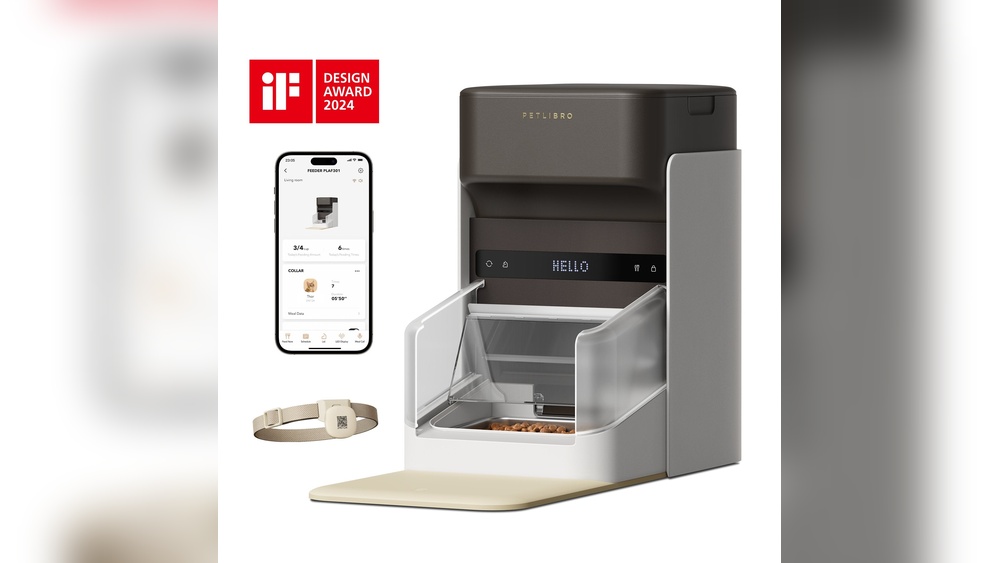
If your Petlibro One RFID Feeder isn’t working quite right, resetting it might be the quick fix you need. Whether it’s stuck, won’t connect to Wi-Fi, or just acting up, knowing how to reset your feeder can save you time and frustration.
In this guide, you’ll learn simple, step-by-step instructions to reset your Petlibro One RFID Feeder and get it back to feeding your pet smoothly. Keep reading to take control and ensure your furry friend never misses a meal.

Credit: petlibro.com
Resetting The Petlibro One Rfid Feeder
Resetting the Petlibro One RFID Feeder is essential for troubleshooting and restoring factory settings. This process helps clear errors and allows a fresh start with new settings. Follow simple steps to complete the reset quickly and safely.
Locate The Reset Button
First, find the reset button on your Petlibro One RFID Feeder. It is usually a small, recessed button on the back or bottom of the feeder. Use a pin or paperclip to press it gently. Make sure the feeder is unlocked before you begin.
Step-by-step Reset Process
Press and hold the reset button for about 5 to 10 seconds. Keep holding until you hear a voice prompt. The LED light will start blinking yellow. This blinking means the feeder has entered setup mode. Release the button once the blinking starts.
Voice Prompts To Confirm Reset
Listen carefully for the voice prompts. The feeder will say “reset successfully” to confirm the reset. Then, it will say “ready for Wi-Fi connection.” These prompts show the feeder is ready for new settings. After this, open the app to re-pair your device.
Credit: designlibro.zendesk.com
Re-pairing The Feeder With The App
Re-pairing the Petlibro One RFID feeder with the app is essential after resetting the device. This process restores the connection between your feeder and your smartphone. It ensures smooth control over feeding schedules and settings. Follow these steps carefully to re-establish the link quickly and effectively.
Opening The Petlibro App
Start by launching the Petlibro app on your smartphone. Make sure your phone has an active internet connection. The app should be updated to the latest version. This helps avoid connection issues during the re-pairing process. If you do not have the app, download it from the Apple App Store or Google Play Store.
Adding The Feeder As A New Device
Inside the app, go to the device management section. Tap on the option to add a new device. The app will search for nearby feeders ready for pairing. Ensure your feeder is in setup mode, usually indicated by a blinking yellow LED light. Select your feeder from the list when it appears on the screen.
Setting Up Wi-fi Connection
After selecting your feeder, the app will prompt you to connect it to your Wi-Fi network. Choose your home Wi-Fi from the list provided. Enter the correct Wi-Fi password carefully. Wait for the app to confirm a successful connection. Your feeder is now re-paired and ready for use.
Troubleshooting Common Issues
Troubleshooting common issues with the Petlibro One RFID feeder helps keep your pet’s feeding routine smooth. Small problems often cause feeding interruptions. Identifying and fixing these can save time and frustration. The following sections cover frequent issues and how to resolve them quickly.
Fixing The Rotor Stuck Error
The “ROTOR STUCK” error stops the feeder from dispensing food. This usually happens when kibble blocks the rotor. First, unplug the feeder to avoid damage. Open the food compartment and check for stuck kibble around the rotor. Clear any clogs carefully. After clearing, press the reset button until you hear “reset successfully.” The feeder should now operate normally.
Clearing Kibble Residue
Kibble residue can build up inside the feeder and cause blockages. Remove the food container and clean it thoroughly with a dry cloth. Use a small brush or toothpick to clear crumbs in tight spots. Avoid using water inside the motor area. Keeping the feeder clean prevents future errors and ensures smooth food flow.
Manual Food Dispensing After Reset
After resetting, you may need to dispense food manually once. Open the feeder lid and press the manual feed button on the device. This action helps the rotor turn freely and clears any leftover blockage. Once the food dispenses, close the lid and check the feeder’s normal operation through the app. Manual dispensing supports a full reset process.

Credit: petlibro.com
Reset Impact And Precautions
Resetting the Petlibro One RFID Feeder affects its stored data and settings. It removes all previous configurations and feeding plans. This action clears the device’s memory, returning it to factory defaults. Users should understand the impact before proceeding. Resetting helps fix errors or connection issues but requires careful steps after.
After a reset, the feeder needs full setup again. Take precautions to avoid losing important feeding schedules. Write down current settings before resetting. Also, ensure the feeder is powered during the process to avoid interruption. The reset process is simple but demands attention.
Erasing Previous Settings
Resetting deletes all saved data on the feeder. This includes feeding times, portion sizes, and RFID tags. The device’s memory becomes blank and ready for new information. Users lose any customized feeding plans set earlier. The feeder’s app will no longer recognize old pairings. This step is necessary to fix errors or start fresh.
After erasing, the feeder’s LED blinks yellow. This shows it has entered setup mode. The device waits for new instructions from the app. Without reprogramming, the feeder will not function properly. Always prepare to re-enter settings after reset.
Reprogramming Feeding Schedules
Once reset, set up feeding schedules again via the Petlibro app. Open the app and connect to the feeder in setup mode. Add feeding times, portion sizes, and assign RFID collars if used. Save each change carefully to avoid losing data.
Test the feeder after programming to confirm it works well. Monitor your pet’s feeding to ensure the new schedule fits their needs. Reprogramming prevents missed or incorrect feedings. It keeps your pet’s routine consistent and safe.
Handling Wi-fi Connection Problems
Wi-Fi connection problems can disrupt your Petlibro One RFID Feeder’s performance. Without a stable connection, the feeder might not operate as expected. Solving these issues quickly helps keep your pet’s feeding routine on track. Below are simple steps to handle common Wi-Fi problems with your feeder.
When The Feeder Fails To Connect
Your feeder may fail to connect due to weak Wi-Fi signals or incorrect network settings. The device might also struggle if the router is too far or if there are too many devices connected. Watch for blinking lights or error messages on the feeder’s display. These signs often indicate connection troubles.
Reset And Reconnect Steps
Start by unlocking the feeder. Press and hold the Reset button until you hear “reset successfully” and “ready for Wi-Fi connection.” This action clears old network data. Next, open the Petlibro app and set up the feeder as a new device. Follow the prompts to connect it to your Wi-Fi network again.
Tips For Stable Wi-fi Setup
Place the feeder within good range of your Wi-Fi router. Avoid walls and large metal objects that block signals. Use a 2.4 GHz network, as many feeders do not support 5 GHz bands. Keep your router firmware updated to improve reliability. Limit the number of devices on your network to reduce interference.
Additional Tips And Maintenance
Keeping your Petlibro One RFID Feeder working smoothly needs regular care and attention. Simple maintenance steps can prevent many common problems. Follow these extra tips to ensure your feeder stays reliable and efficient.
Regular Cleaning To Prevent Errors
Clean the feeder often to avoid food residue build-up. Food crumbs can block the rotor and cause errors. Use a soft cloth and mild soap to wipe all parts. Remove the food tray and clean it thoroughly. Make sure everything is dry before reassembling. Regular cleaning keeps sensors and moving parts free. It helps the feeder work without interruptions.
Keeping Firmware Updated
Check for firmware updates regularly through the Petlibro app. Updates fix bugs and improve performance. Connect your feeder to Wi-Fi and follow app instructions to update. Running the latest software reduces errors and adds new features. Firmware updates keep your feeder secure and compatible with other devices.
Contacting Petlibro Support
Reach out to Petlibro support if problems continue after resetting. They can guide you through advanced troubleshooting steps. Use the official website or app to find contact details. Support staff respond quickly to help with technical issues. Don’t hesitate to get professional help to protect your pet’s feeding schedule.
Frequently Asked Questions
How To Factory Reset A Pet Feeder?
Press and hold the Reset button until the feeder says “reset successfully” and shows blinking yellow. Then, use the app to reprogram and reconnect the feeder. This erases previous settings and feeding schedules.
How To Factory Reset Sure Pet Feeder?
Press and hold the Reset button on the Sure Pet Feeder until you hear “reset successfully. ” The LED will blink yellow, indicating setup mode. Open the app to reprogram and reconnect the feeder. This resets all settings and feeding schedules to factory defaults.
How Do I Get My Petlibro Back Online?
Press and hold the Reset button until you hear “reset successfully” and “ready for Wi-Fi connection. ” Then, open the Petlibro app to re-pair the feeder as a new device. This restores online connectivity and clears previous settings.
Why Won’t My Petlibro Rfid Feeder Open?
Your Petlibro RFID feeder may not open due to a stuck rotor or power issue. Clear kibble residue, reset the feeder by holding the Reset button until it says “reset successfully,” then re-pair it via the app to fix the problem.
Conclusion
Resetting the Petlibro One RFID feeder is simple and quick. Follow the steps carefully to avoid errors. Remember, resetting clears all previous settings. After reset, re-pair the feeder with the app to restore functions. Keep the feeder clean to prevent rotor issues.
A proper reset helps your feeder work smoothly again. Take your time, and your pet will enjoy timely meals.