
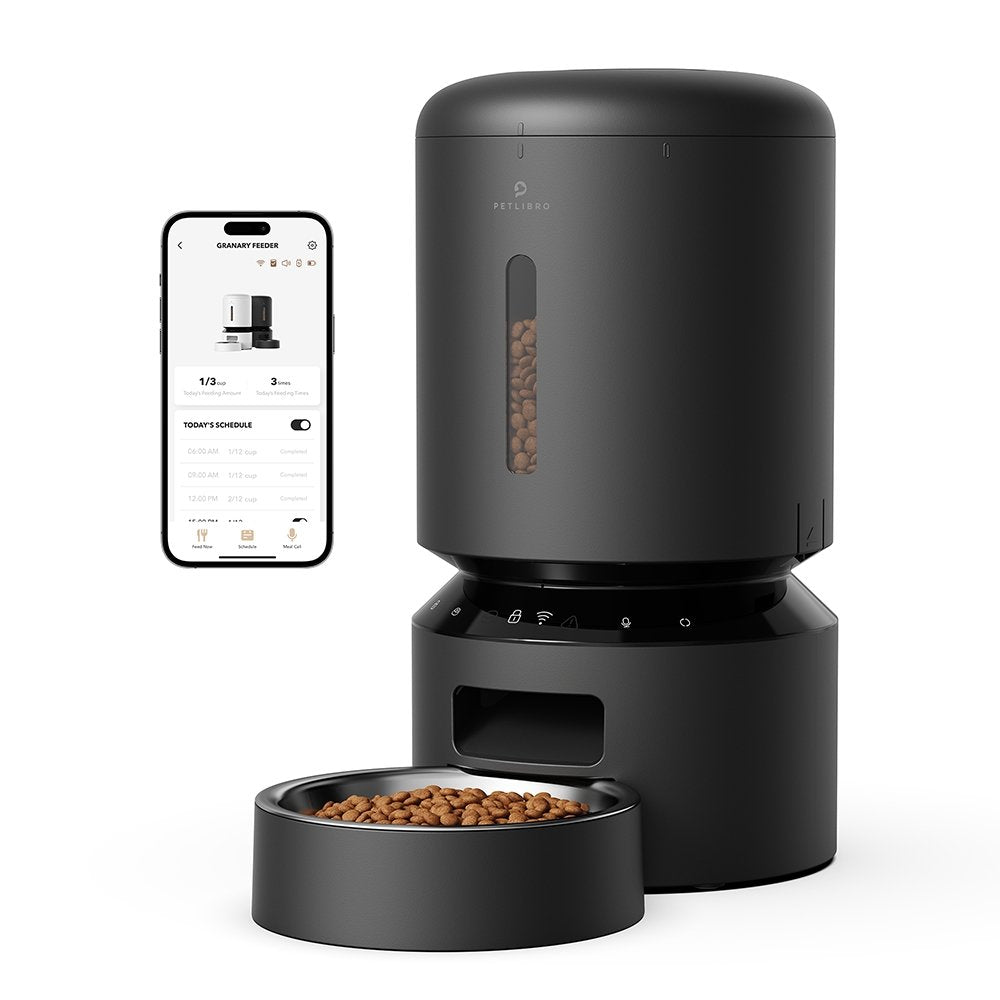
Is your Petlibro Granary feeder acting up or refusing to connect? Resetting it can solve many common problems, but knowing the exact steps is key to getting your smart feeder back on track quickly.
Whether you’re dealing with Wi-Fi issues, app glitches, or just want to start fresh, this simple reset guide will walk you through every step. By the time you finish reading, you’ll have your feeder reset and ready to serve your pet’s meals smoothly again.
Keep reading to learn how to reset your Petlibro Granary feeder like a pro.
Locate The Reset Button
Finding the reset button on your Petlibro Granary Feeder is the first step to fixing many issues. The reset button lets you restore the feeder to its original settings. This can solve problems like connection errors or feeding delays.
The reset button is small and may not be easy to spot at first. It is designed to avoid accidental presses. Knowing where it is helps you reset the feeder quickly and correctly.
Check The Back Of The Feeder
Look at the back side of the feeder. The reset button is usually near the power input or battery compartment. It is often a tiny hole or a small button labeled “Reset.”
Use A Small Tool To Press
The reset button is often recessed. Use a paperclip or a similar small tool to press it. Avoid using sharp objects that might damage the feeder.
Locate Near Battery Compartment
Open the battery cover to find the reset button. Some models place it inside the battery compartment for safety. This prevents it from being pressed by mistake.
Check User Manual For Exact Location
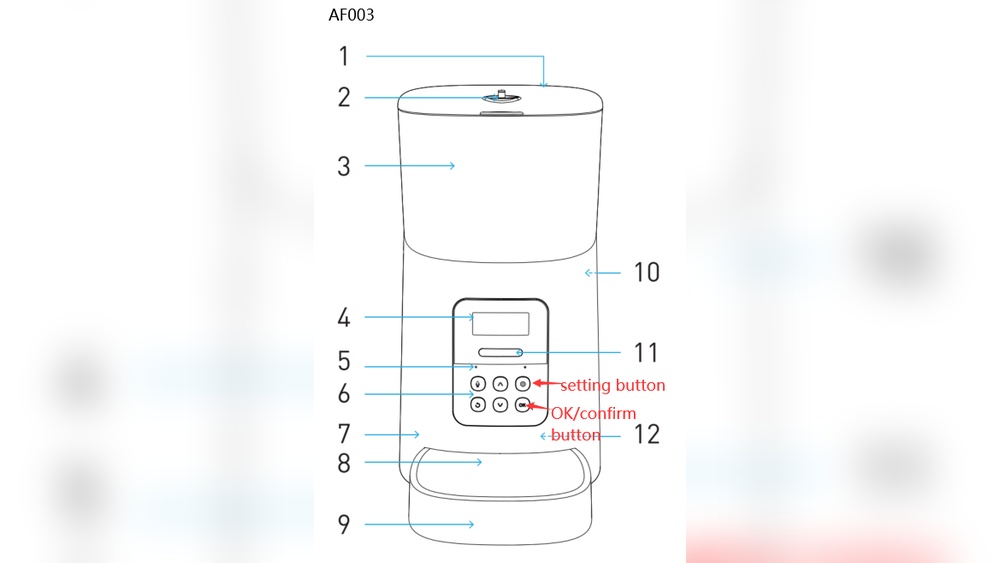
Refer to the Petlibro Granary user manual. It shows the reset button’s exact spot with pictures. This helps if you cannot find it by sight alone.
Credit: petlibro.com
Prepare The Feeder For Reset
Before resetting your Petlibro Granary Feeder, you need to prepare it properly. This step ensures the reset process works smoothly and avoids any errors. Follow these simple tasks carefully to get the feeder ready.
Power must be fully off before starting the reset. Removing power helps clear any active settings. It also prevents damage during the reset process. Take your time and follow the instructions below.
Unplug Power And Remove Batteries
First, unplug the feeder from the electrical outlet. Make sure the power cord is completely disconnected. Next, open the battery compartment on the feeder. Remove all batteries from the device. This step cuts off all power sources. It helps reset the internal system fully.
Wait For Led Indicators
After removing power, watch the LED lights on the feeder. Wait until all lights turn off. This shows the feeder has lost power completely. The LED indicators usually take a few seconds to go dark. Do not rush the reset until the lights are off. This ensures the device is ready for the next steps in resetting.
Perform A Factory Reset
Performing a factory reset on your Petlibro Granary Feeder restores it to original settings. This helps fix connection problems or errors. The reset clears all saved data and settings. Prepare to reconnect the feeder to your Wi-Fi and app after the reset.
Press And Hold The Reset Button
Locate the reset button on your feeder. It is usually a small hole or button on the back or bottom. Use a paperclip or similar object to press and hold the button. Keep holding it for about 10 seconds without releasing.
Listen For Confirmation Beeps
While holding the reset button, listen carefully for beep sounds. The feeder will make a series of beeps to confirm the reset process. These beeps signal that the device is clearing previous settings. Release the button only after you hear the confirmation beeps.
Wait For Setup Mode Activation
After the beeps, the feeder’s LED light will start blinking yellow. This blinking shows the feeder is in setup mode. It is now ready to connect to your Wi-Fi and the Petlibro app again. Follow the app instructions to complete the setup.

Credit: www.youtube.com
Reset Via Petlibro App
Resetting your Petlibro Granary Feeder via the Petlibro app is a simple and effective way to restore the device to its original settings. This method helps clear any errors or connection issues without needing to access the physical feeder. Using the app lets you manage the reset process remotely and easily.
Open Feeder Settings
Start by opening the Petlibro app on your smartphone. Locate your Granary Feeder in the device list. Tap on the feeder to access its main control panel. Look for the settings icon, usually found in the top right corner, and tap it to open the feeder settings menu.
Select Factory Reset Or Remove Device
Within the settings menu, scroll to find the option labeled “Factory Reset” or “Remove Device.” Choosing “Factory Reset” will erase all stored data and settings on the feeder. Selecting “Remove Device” will unlink the feeder from your app account. Tap your preferred reset choice to proceed.
Confirm Reset Process
The app will ask you to confirm the reset or removal process. Confirm your selection by tapping “Yes” or “Confirm.” The app then sends the reset command to the feeder. Wait a few moments while the device resets. The feeder will restart and return to its default factory settings.
Reconnecting The Feeder
Reconnecting the Petlibro Granary Feeder is a crucial step after resetting it. This process ensures the feeder communicates smoothly with your phone. Proper reconnection helps maintain feeding schedules and remote control features. Follow these steps carefully to restore the connection.
Wait For Wi-fi Light To Flash
After resetting, watch the feeder’s Wi-Fi light closely. It should start flashing blue. This blinking means the feeder is ready to connect to your network. Do not rush this step. Wait patiently until the light flashes steadily before moving forward.
Pair With Petlibro App
Open the Petlibro app on your smartphone. Select your feeder from the device list or add a new one. Follow the on-screen instructions to connect the feeder to your Wi-Fi. Ensure your phone is near the feeder during this process. Successful pairing restores full control of the feeder.
Credit: designlibro.zendesk.com
Troubleshooting Reset Issues
Resetting the Petlibro Granary Feeder may not always work on the first try. Some issues can block the reset process. Troubleshooting these problems helps get the feeder back to normal. Follow clear steps to fix reset issues without stress.
Remove Batteries And Retry
Start by removing the batteries from the feeder. Wait for about one minute. This allows the feeder to fully power down. Put the batteries back in. Try pressing the reset button again. This simple step often clears minor glitches.
Check For Software Updates
Outdated software can cause reset problems. Open the Petlibro app on your phone. Look for any available updates for the feeder. Install updates to ensure the device runs smoothly. Updated software fixes bugs that may block resets.
Contact Support If Needed
If the feeder still does not reset, seek help from Petlibro support. They offer expert advice for tricky issues. Provide details about your feeder model and the problem. Support can guide you through advanced troubleshooting or repairs.
Resetting Specific Models
Resetting specific Petlibro Granary feeder models varies by device type. Each model has unique steps to follow. These steps help restore default settings or fix connection issues. Understanding the reset process for your model ensures smooth operation.
Wi-fi And Camera Models
Unplug the feeder from power and remove its batteries. Press and hold the reset button for about 10 seconds. Wait until the device announces “Ready for Wi-Fi connection.” The LED will blink yellow, signaling the reset is complete. Open the Petlibro app and reconnect the feeder. Use the app settings to finish setup or perform a factory reset.
Rfid Feeder Models
Remove the batteries to power off the feeder. Press and hold the reset button located on the device. Keep holding until you hear a confirmation sound or see an LED change. This resets all stored RFID data and feeding schedules. Replace the batteries and power on the feeder. Reprogram your RFID tags and feeding times as needed.
Tips To Maintain Feeder Performance
Maintaining your Petlibro Granary Feeder ensures it works smoothly and lasts longer. Simple care steps keep the feeder reliable for your pet’s meals. Follow these easy tips to keep it in top shape.
Regular Battery Checks
Check the batteries often to avoid feeding interruptions. Replace batteries when power is low to keep the feeder running. Use fresh, high-quality batteries for best results. Low battery power can cause errors or stop the feeder.
Keep Firmware Updated
Update the feeder’s firmware regularly. Firmware updates fix bugs and improve performance. Connect the feeder to Wi-Fi and use the Petlibro app to check for updates. Staying current helps the feeder work without glitches.
Clean Feeder Components
Clean the feeder parts regularly to prevent food buildup. Remove and wash the bowl and food tray with warm, soapy water. Wipe the feeder’s exterior with a damp cloth. Clean parts help avoid jams and keep food fresh.
Frequently Asked Questions
How To Factory Reset Petlibro Granary Camera Feeder?
To factory reset the Petlibro Granary Camera Feeder, remove batteries, press and hold the reset button until you hear “Reset Successfully. ” The LED will blink yellow, indicating setup mode. Reconnect via the app to complete the setup.
Where Is The Reset Button On The Petlibro?
The reset button on the Petlibro feeder is located inside the battery compartment. Hold it until you hear beeps for reset confirmation.
How To Factory Reset A Pet Feeder?
To factory reset a pet feeder, press and hold the reset button until you hear confirmation beeps. The LED will blink yellow, signaling setup mode. Then, open the feeder’s app to reprogram and reconnect the device.
How Do You Reset The Feeder On A Petlibro One Rfid Feeder?
To reset the Petlibro One RFID feeder, unplug it and remove batteries. Hold the reset button until you hear beeps and see flashing lights. The feeder then enters setup mode, ready for reprogramming via the Petlibro app.
Conclusion
Resetting your Petlibro Granary Feeder is simple and quick. Just follow the steps carefully to avoid errors. Keep the feeder unplugged while pressing the reset button. Wait for the LED light to blink, showing it’s ready for setup. Use the app to finish programming the feeder.
This process helps fix common issues and keeps your feeder working well. Regular resets can improve performance and connectivity. Stay patient and try again if it doesn’t work the first time. Your pet’s feeding routine will stay smooth with these easy resets.